


You have found a useful YouTube tutorial. Now you need to explain it to your team—in eight minutes, with slides, tomorrow morning.
The familiar approach involves pausing the video, taking notes, collecting screenshots, and trying to remember why the speaker’s third example mattered. By the time you open PowerPoint, you have plenty of material but no presentation.
A YouTube to PowerPoint workflow can help bridge that gap. AI organizes video content into a presentation draft, while you decide what deserves attention and check whether the explanation holds up.
This guide walks through YouTube to PowerPoint using Agent Slides in AI PPT Maker, including the instructions to provide, the details to review, and the editing work that comes after generation.
YouTube to PowerPoint: Turn Video Content into Structured Slides
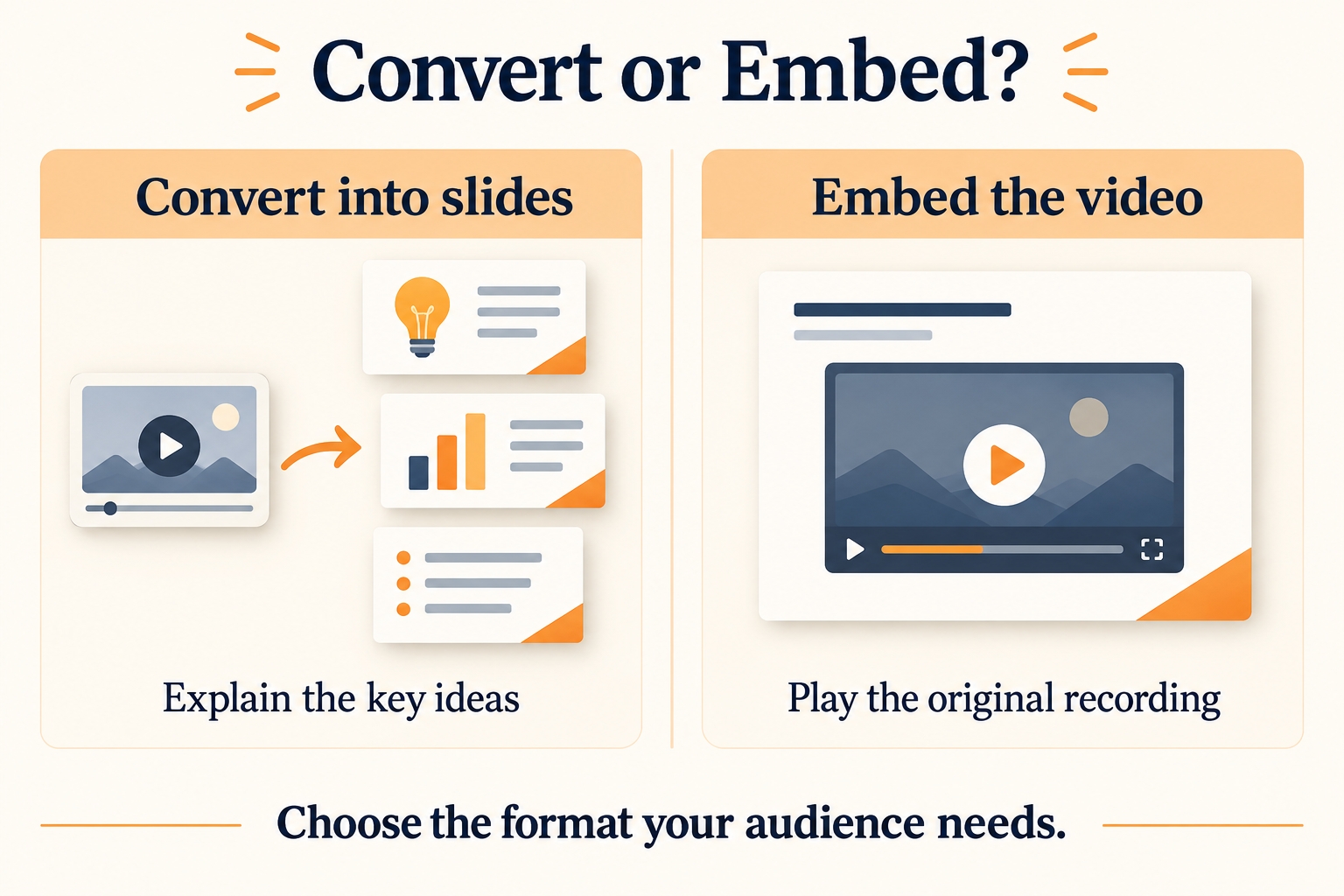
Creating Slides from a YouTube Video vs. Embedding the Video
Embedding places a playable video inside a presentation. Converting turns its content into slide titles, explanations, and supporting points.
For example, Gamma supports embedding YouTube videos, while MagicSlides offers a dedicated YouTube-to-presentation feature. These capabilities address different needs; neither label alone tells you how well a finished deck will fit your assignment.
Choose YouTube to PowerPoint when your audience needs a concise explanation they can follow without watching the whole recording. Embedding may be more useful when the movement, demonstration, or speaker’s delivery is essential.
Using Agent Slides to Organize Video Content into a Presentation
Agent Slides helps organize key points and design slides, then supports editable PowerPoint downloads.
The practical goal of YouTube to PowerPoint is a usable starting point. You should still expect to verify claims, adjust emphasis, and adapt the explanation for people who have not seen the source.
A faithful transcript and a useful presentation are different deliverables.
How to Convert YouTube to PowerPoint with Agent Slides
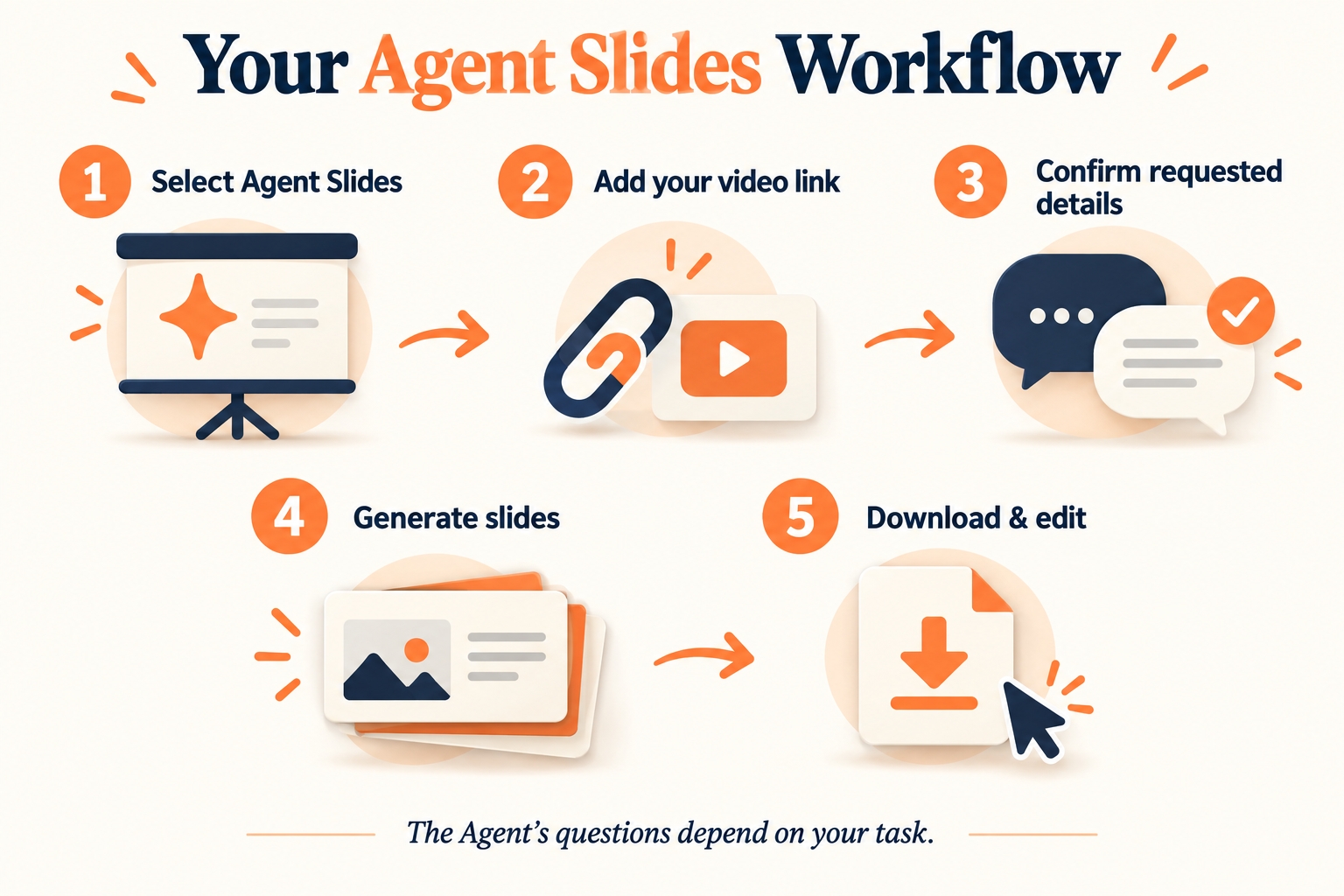
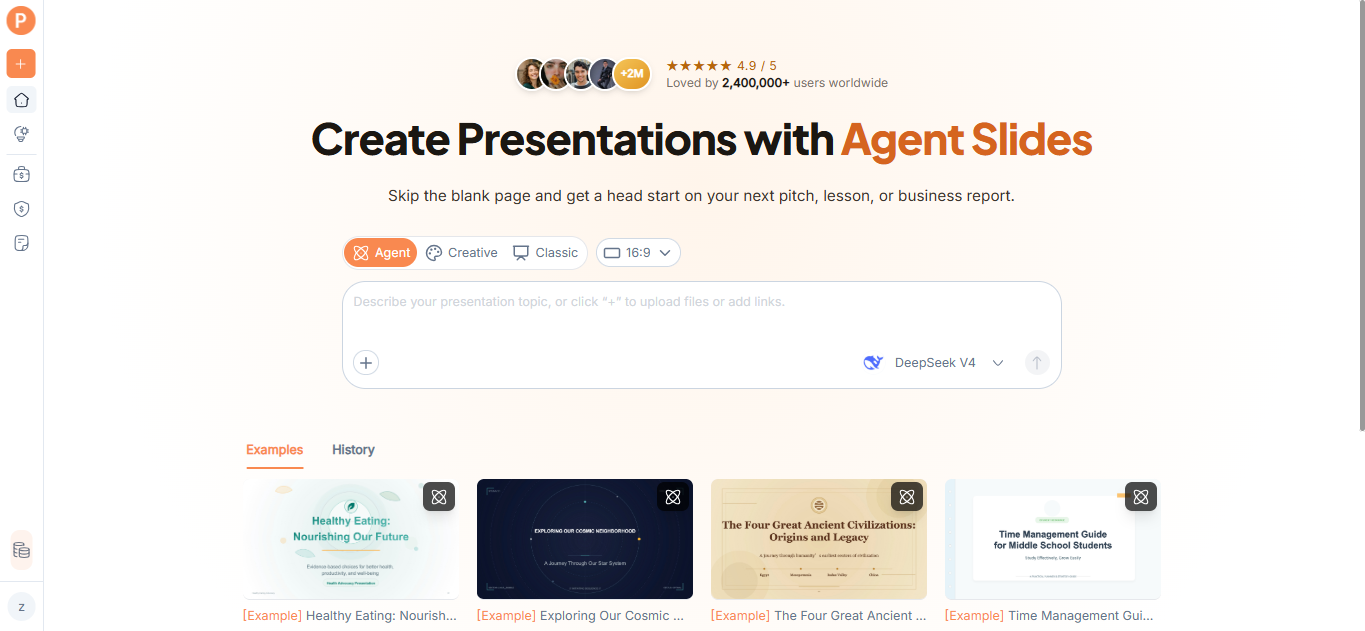
Step 1: Open AI PPT Maker and Select Agent Slides
Open YouTube to PowerPoint and select Agent Slides.
Start with a video you know well enough to evaluate. That makes it easier to notice missing context or an explanation that sounds plausible but changes the original meaning.
For your first attempt, choose a focused tutorial rather than a sprawling interview with several unrelated topics.
Step 2: Paste Your YouTube Video Link and Describe What You Need
Paste the video link and explain the intended presentation.
Include the audience, approximate speaking time, and outcome. A training deck should help someone perform a task; a management briefing should help someone understand an issue or make a decision.
For a YouTube to PowerPoint request, you could write:
Turn this video into a six-slide presentation for colleagues who are new to the topic. The talk should take about eight minutes. Explain the main process, retain important cautions, and finish with practical next steps. Use only information supported by the source. Flag anything that needs verification.
This gives the task a direction without demanding that every minute of footage become a slide.
Step 3: Follow the Agent’s Prompts to Confirm the Required Details
Respond to the questions or confirmation requests that appear.
This stage is task-dependent. Agent Slides may need different details for different requests, so do not expect an identical sequence of settings every time. Follow the actual prompts rather than looking for a mandatory outline-approval screen.
If a question reveals that your request was too broad, narrow it. “Explain the onboarding process” is more actionable than “cover everything important.”
Clear answers help keep your YouTube to PowerPoint presentation aligned with its purpose.
Step 4: Let Agent Slides Create Your Presentation
Continue through the generation process after supplying the requested information.
When the draft is available, read the slide titles in sequence. Do they form a coherent explanation? Can someone understand the main argument without reconstructing the video themselves?
Before adjusting colors, identify repetition, unsupported conclusions, and missing transitions. YouTube to PowerPoint works best when the generated structure serves the audience rather than mechanically following the recording.
Step 5: Download and Edit Your PowerPoint Presentation
Download the PowerPoint output and open it in PowerPoint for review.
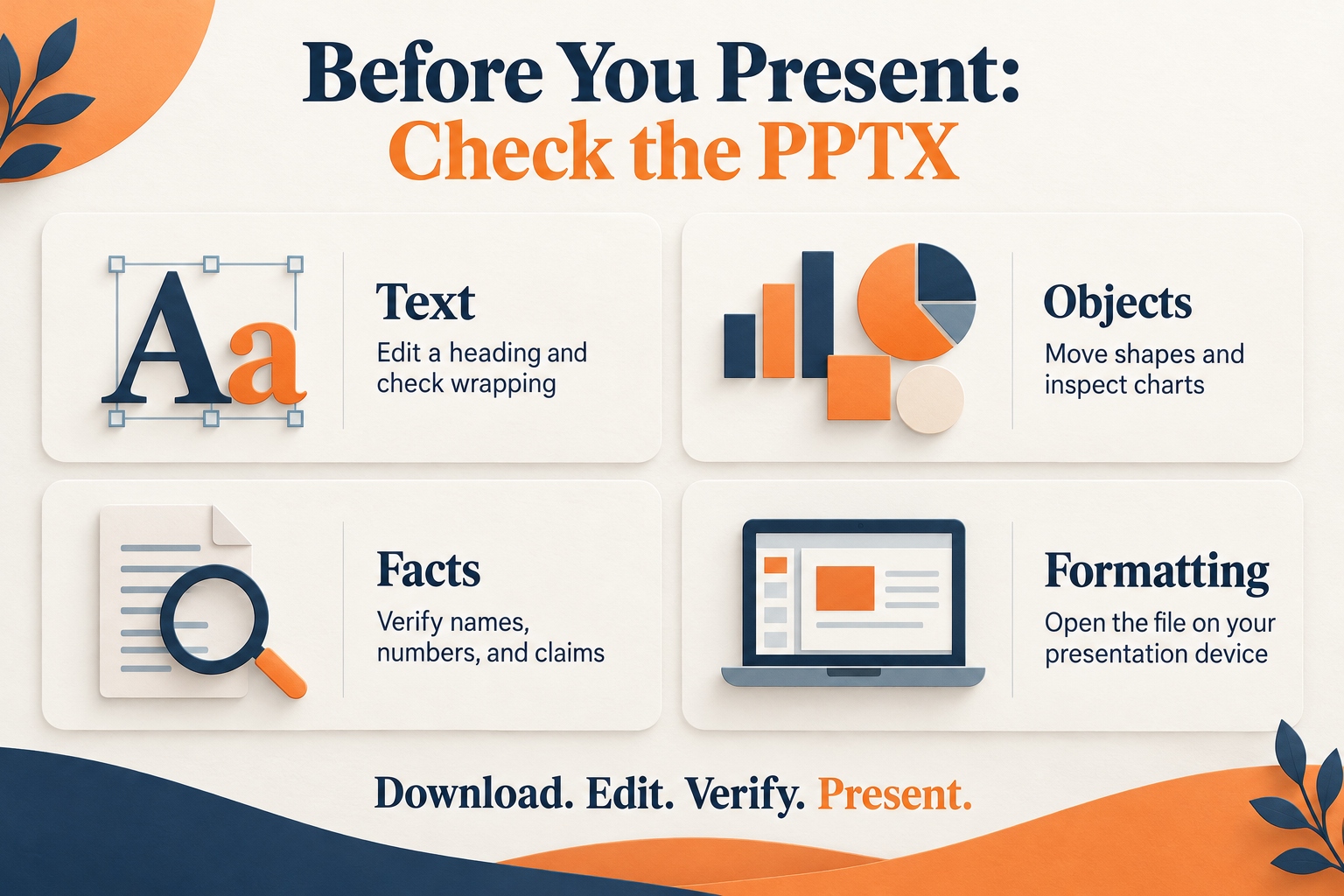
Agent Slides supports editing text, moving shapes, and adding or removing elements after export. Test these actions on a few representative slides before preparing the final version.
A YouTube to PowerPoint conversion is not finished when the download appears. It is finished when the file communicates clearly and works in the environment where you will present it.
YouTube to PowerPoint Example: From Video Content to a Slide Structure
Identify the Video’s Main Message and Supporting Points
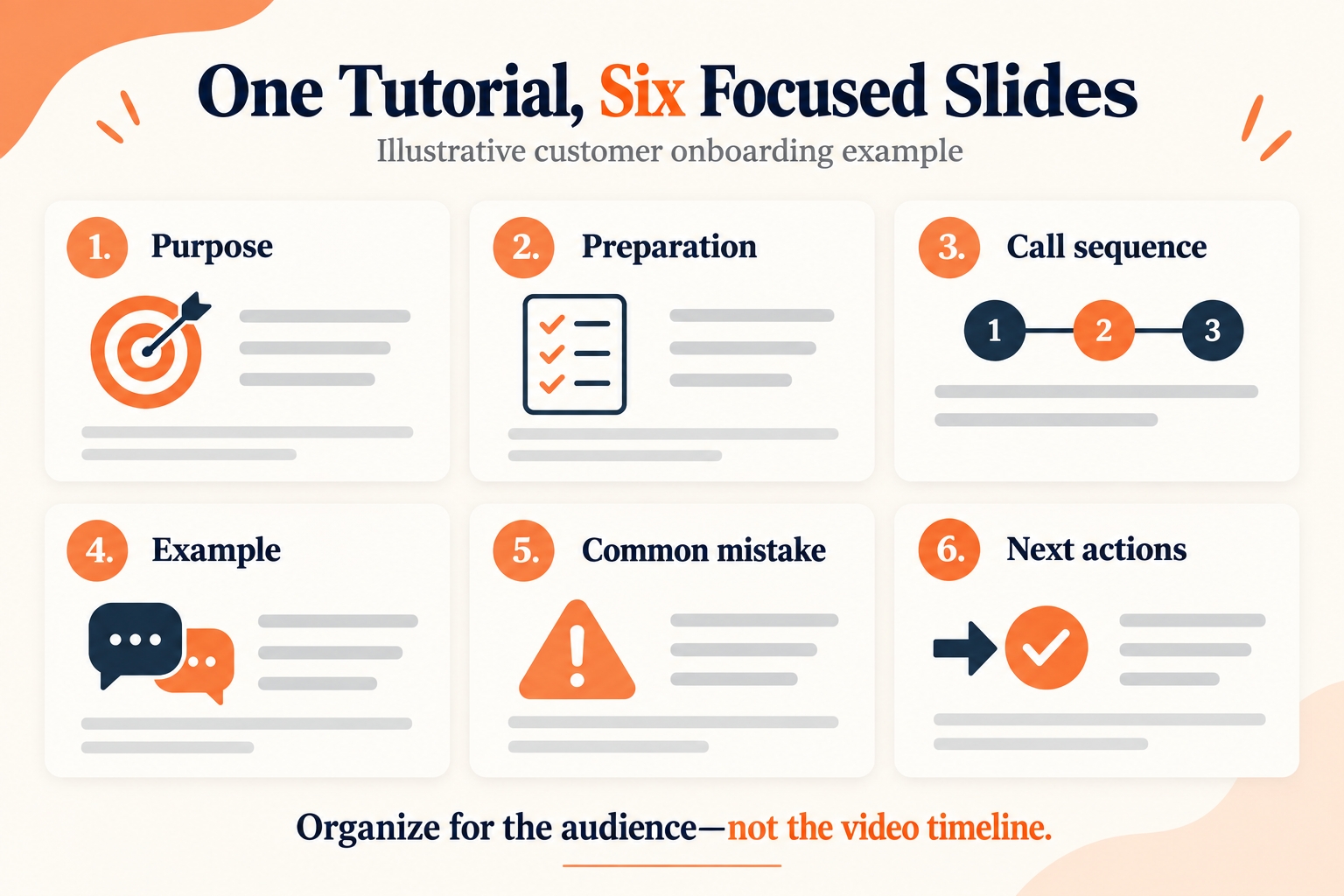
Imagine a tutorial explaining how to run a customer onboarding call. This is an illustrative example, not a tested conversion.
The recording might include an introduction, a demonstration, several tangents, and audience questions. Your colleagues probably need the process, its rationale, and the mistakes to avoid.
Write down the intended takeaway: “Run an onboarding call that ends with clear responsibilities and next steps.”
That sentence becomes the filter for your YouTube to PowerPoint draft.
Organize the Key Ideas into a Short Presentation
A six-slide version could introduce the purpose, explain preparation, show the call sequence, develop a useful example, highlight a common mistake, and close with next actions.
Notice that the structure follows the learner’s needs. It does not preserve the recording’s timestamps as chapter headings.
In a YouTube to PowerPoint presentation, a brief but important warning may deserve more space than a long introduction.
Decide What to Keep, Summarize, or Leave Out
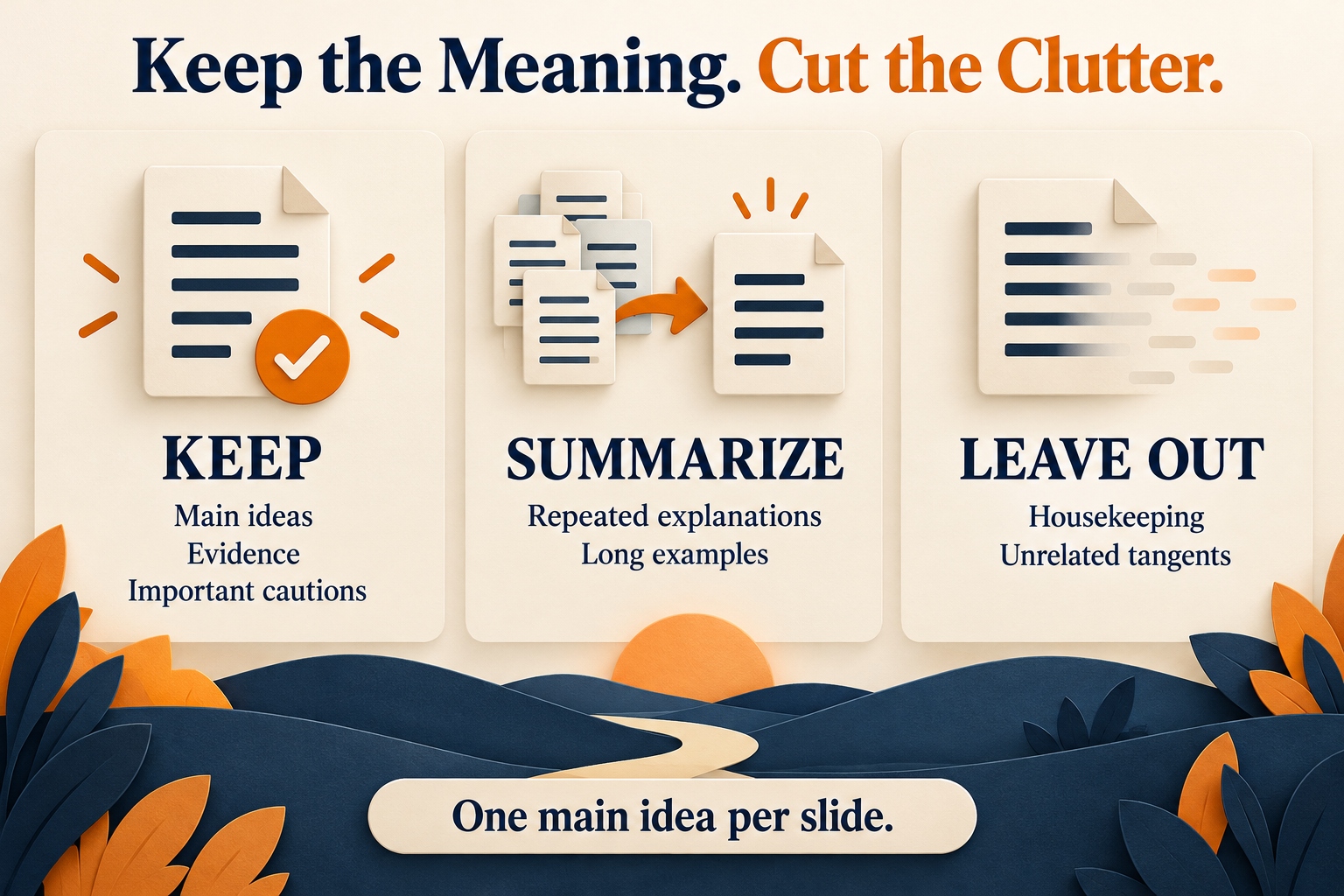
Keep evidence, essential steps, and qualifications that affect understanding. Summarize repeated explanations. Remove housekeeping and tangents unless they support your objective.
Do not remove a limitation simply because it complicates the slide. “This works for small teams” means something different from “This works.”
Good compression preserves meaning, not just keywords.
Tips for Better YouTube to PowerPoint Results
Describe Your Audience, Purpose, and Presentation Length
“Make it professional” leaves many decisions unresolved.
A better request identifies the audience’s existing knowledge and the action you want them to take. Mention unfamiliar terminology, the desired level of detail, and any section that matters especially to your assignment.
For YouTube to PowerPoint, presentation length is a useful constraint, but treat it as guidance rather than a universal slides-per-minute formula. A dense diagram may need several minutes; a transition slide may need ten seconds.
Check Names, Numbers, and Claims Against the Original Video
Captions and transcripts can contain recognition errors. Spoken qualifications may also disappear when content is condensed.
Check names, dates, percentages, units, and comparisons directly against the relevant moment in the recording. If necessary, keep a working note with timestamps so you can return quickly.
The most important YouTube to PowerPoint quality check is whether the meaning survived—not whether every bullet sounds confident.
Keep Each Slide Focused on One Main Idea
A transcript paragraph rarely belongs unchanged on a slide.
Replace a long explanation with a clear takeaway and enough supporting detail to make it credible. Move background information into your spoken explanation or notes where appropriate.
When reviewing YouTube to PowerPoint output, ask whether each sentence earns its place. Six bullets are not automatically concise. Sometimes they are simply a paragraph wearing a disguise.
Review Visuals and Credit the Video Source
A speaker may say “click here” while pointing to something visible only on screen. Those moments need visual checking; a text-based summary alone may not explain the action.
Review diagrams and demonstrations in the recording. Add your own explanation or suitable visuals where needed.
Include the creator, video title, and source URL in the presentation. When reusing images or footage, check the relevant permissions as well.
Editing Your YouTube to PowerPoint Presentation After Export
Refine Slide Titles and Text in PowerPoint
Generic titles such as “Overview” and “Benefits” make the audience work harder.
Where the evidence supports it, use titles that communicate a point: “Confirm ownership before ending the call” is more informative than “Next steps.”
A YouTube to PowerPoint draft becomes more useful when its headings reveal the story. Check that changing a title does not create awkward wrapping or obscure nearby content.
Adjust Shapes and Layouts to Fit Your Message
Inspect the objects you actually need to change. Editable text does not automatically mean every illustration or chart has the same editing behavior.
Move a shape, replace an image, and try adjusting a crowded page. If a complex visual is unsuitable, simplifying it may be quicker than preserving every decorative detail.
Check Fonts and Formatting Before Presenting
Open the file on the device you will use. Examine tables, symbols, text boundaries, and any slides you changed after export.
This final YouTube to PowerPoint check matters especially when handing the deck to a colleague. A presentation that works on your screen still needs to work on theirs.
Practical Uses for YouTube to PowerPoint
Turn YouTube Lectures into Study Presentations
Use YouTube to PowerPoint to organize a lecture around concepts, examples, and questions you should be able to answer.
Avoid treating the generated deck as a substitute for understanding. Try explaining each slide aloud; the point where you hesitate is often where more study is needed.
Turn Video Tutorials into Training Slides
For training, YouTube to PowerPoint can provide a starting structure for explaining a task.
Add the details specific to your workplace: terminology, responsibilities, and the version of the software your team uses. A well-organized deck can still teach the wrong procedure if the source is outdated.
Repurpose Your Recorded Webinars into Shareable Slide Decks
Your own webinar may contain useful material buried between introductions and live questions.
A YouTube to PowerPoint workflow lets you reshape that material for a different purpose, such as a short internal briefing. Preserve important answers, remove event-specific housekeeping, and update anything that has changed.
YouTube to PowerPoint FAQs
Is Agent Slides Free to Use?
Agent Slides requires a Basic or Pro subscription, with credits charged according to the generation task. The free Classic allowance is separate.
Before starting a YouTube to PowerPoint project, check the current plan and credit information. Do not assume that a general free-plan offer includes every creation mode.
Can I Edit My YouTube to PowerPoint Presentation After Downloading?
Yes. Agent Slides supports editable PowerPoint downloads, allowing you to adjust text, move shapes, and add or remove elements.
Still, inspect the particular objects your workflow depends on. Before sending a YouTube to PowerPoint file to someone else, make a small edit and confirm the layout remains usable.
Why Does Agent Slides Ask Me to Confirm Different Details?
The information needed depends on the task and the workflow the Agent uses to complete it.
Different YouTube to PowerPoint requests may therefore produce different questions. Answer what appears on screen; there is no need to search for settings that are not part of your current task.
What Should I Do If My YouTube Link Cannot Be Processed?
First, confirm that the link opens the intended video and check the message shown by the tool. Access restrictions or unavailable source content are possibilities, not diagnoses.
If the link still fails, use a transcript or your own notes that you are permitted to supply through a supported input. Where YouTube provides a transcript, it can also help you locate and verify relevant passages.
Do not assume every video or caption condition is supported.
How Can I Turn a Long YouTube Video into a Short Presentation?
Define one outcome and keep only the material needed to support it. You might focus on a single process, three findings, or one decision instead of summarizing every section.
Specify that scope in your YouTube to PowerPoint instructions. After generation, cut repetition and rehearse aloud. Your speaking time is a better guide than the source video’s duration.
Does YouTube to PowerPoint Recreate the Video’s Original Slides?
Do not expect it to recover the original presentation file, animations, or exact slide layouts.
YouTube to PowerPoint creates a new presentation from the available content. If you need the speaker’s original deck, look for a download provided by the creator or request it directly.
To create a new presentation from the video’s ideas, open YouTube to PowerPoint, select Agent Slides, and provide a focused brief. Review the result against the video before presenting, so your final deck is something you can confidently explain, edit, and share.