Two Ways to Make AI Part of Your Presentation Workflow
NoteGPT
Slides Within a Broader AI Toolkit
NoteGPT brings slide generation alongside tools for notes, summaries, transcription, and other AI tasks. Its slide creator offers Agent Slides, Creative Slides, and Classic Slides, with entry points for text, files, article links, and YouTube.
AI PPT Maker
A Starting Point Built Around Your Next Presentation
Start with your content, choose Agent Slides, Creative Slides, or Classic Slides, and build a deck around your audience and purpose. Your choice of mode shapes how you create, refine, and download the result.
NoteGPT vs AI PPT Maker at a Glance
Both products offer several ways to create slides. Compare how each workflow handles your material, your revisions, and your final presentation.
NoteGPT vs AI PPT Maker at a Glance
Feature
NoteGPT
AI PPT Maker
Product focus
Slide creation within a broader AI toolkit
✓A presentation-centered creation experience
Creation modes
Agent Slides, Creative Slides, Classic Slides
✓Agent Slides, Creative Slides, Classic Slides
Starting material
Text, files, article links, and YouTube entry points
✓Text, documents, and links as presentation starting points
Document conversion
Create slides from uploaded source material
✓Dedicated DOC to PPT, PDF to PPT, and other source workflows
Design approach
Multiple modes for different slide workflows
✓Agent-led, creative, and template-based approaches
Follow-up editing
Demonstrated in the tested agent workflow
✓Refine an Agent Slides deck through follow-up instructions
PowerPoint output
PPTX obtained in the tested workflows
✓PPTX through Agent Slides and Classic Slides
Creative output
Available formats depend on the selected workflow
✓PNG downloads through Creative Slides
Data presentation
Charts and visual data layouts in the supplied sample
✓Native charts and tables in the supplied Agent Slides sample
Best starting point
Try the slide workflow alongside your other AI tasks
✓Choose the mode that fits your presentation and delivery needs
From Your First Idea to Your Final Presentation
Start with the Material You Already Have
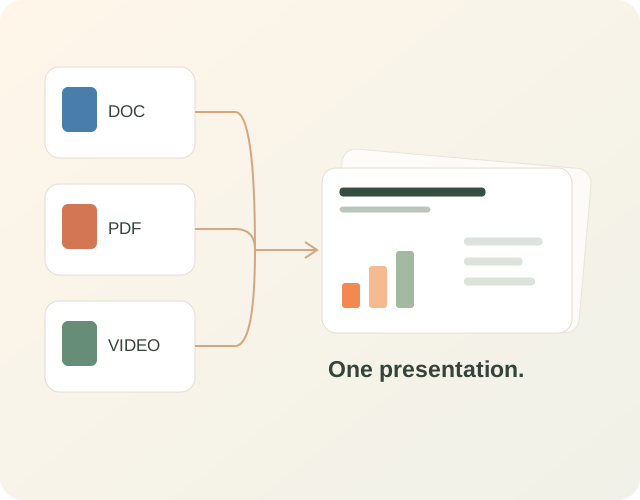
A report, a set of notes, or a useful video can give your presentation a head start. NoteGPT provides entry points for text, files, article links, and YouTube. AI PPT Maker also supports creating from existing content, including dedicated DOC to PPT, PDF to PPT, and YouTube to PPT workflows.
Tell the AI who the presentation is for, what it should cover, and which details must stay. A management review needs different emphasis from a classroom lesson, even when both start from the same document.
Choose How You Want to Build Your Slides
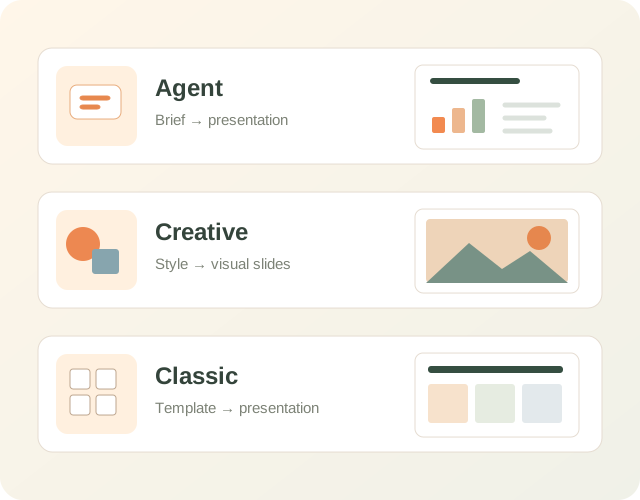
Both products offer Agent Slides, Creative Slides, and Classic Slides. Compare the controls within each mode to find the balance of direction, visual style, and hands-on choice that works for you.
In AI PPT Maker, use Agent Slides for a brief and follow-up instructions, Creative Slides to select a model and visual style, or Classic Slides to begin with a template. The mode you choose also determines your download options.
Keep Working After the First Draft
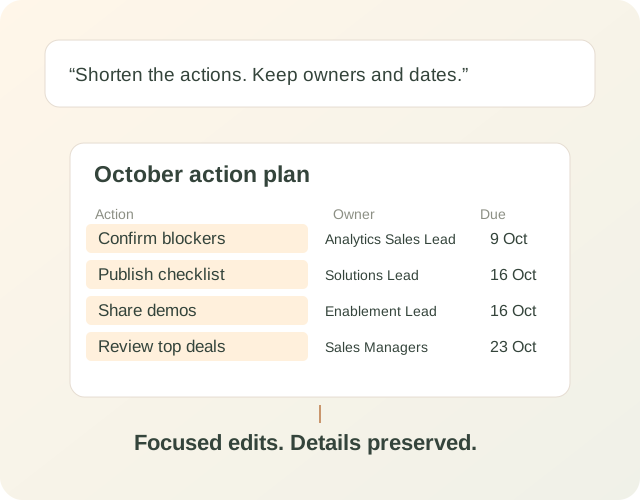
Your first deck is a starting point. Follow-up editing was available in both tested agent workflows. Ask for a sharper headline, shorter descriptions, or a more useful action plan.
In our AI PPT Maker example, the revised final slide kept all four original owners and deadlines. The other seven slides remained unchanged. A focused revision can help you keep moving without rebuilding the presentation.
Take Your Presentation into the Next Step
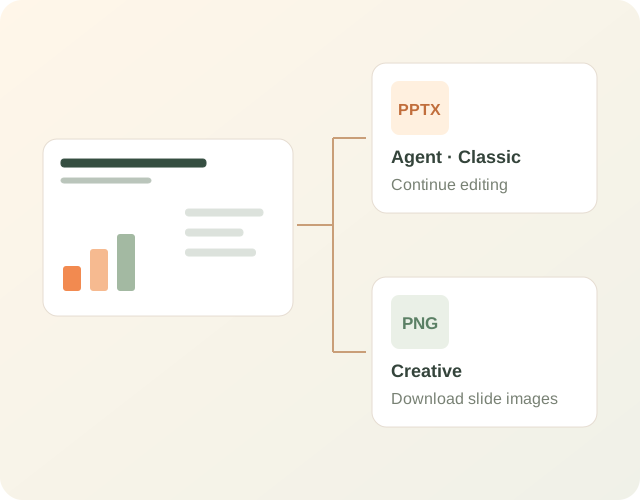
AI PPT Maker provides PPTX downloads through Agent Slides and Classic Slides, while Creative Slides provides PNG downloads. PPTX files were also available in the tested NoteGPT workflows. Choose the mode with your final handoff in mind.
Our AI PPT Maker sample contained native text, four tables, and four charts. Look at the objects you need to work with alongside the file format when planning your next round of edits.
Find Your Way to Create with AI PPT Maker
Three modes. Different starting choices. A workflow for the presentation you want to make.
Agent Slides
Describe the Presentation You Need
Add your source and brief
Tell the agent what the presentation should accomplish.
Review the full deck
Check the structure, figures, and message.
Continue the conversation
Request specific changes, then download the PPTX.
Creative Slides
Explore a Visual Direction
Choose your model and style
Set the direction for your visual presentation.
Review the outline
Confirm the structure before creating the slides.
Generate and refine
Edit the result and download the slides as PNG.
Classic Slides
Start with a Template
Upload and choose a template
Start with your material and a layout you like.
Confirm the outline
Review the content and its order.
Generate and download
Create your presentation and continue with a PPTX.
The Same Report. Different Presentation Results.
Explore actual slides from the sales-review example. Compare the presentation style, information hierarchy, and details retained from the source.
You want slide creation alongside tools for notes, summaries, and transcription.
You want to explore its separate slide-generator and agent workflows.
You prefer the presentation style shown in its sample.
Choose AI PPT Maker If…
You regularly turn reports, notes, and other source material into presentations.
You want to choose between agent-led, creative, and template-based workflows.
You need a deck you can refine through instructions and continue working with in PowerPoint.
Your Brief. Another Perspective.
Ask ChatGPT or Gemini to compare NoteGPT and AI PPT Maker around the presentation you need to create.
NoteGPT vs AI PPT Maker: Your Questions, Answered
What is the main difference between NoteGPT and AI PPT Maker?
NoteGPT offers slide creation alongside a broader set of AI tools. AI PPT Maker centers its experience on creating presentations through Agent Slides, Creative Slides, and Classic Slides. Compare the specific workflow you need, including source input, revisions, and final output.
Do both products offer different slide creation modes?
Yes. Both offer Agent Slides, Creative Slides, and Classic Slides. The controls, editing experience, and output options should be checked within each mode rather than assumed to be identical.
Can I create a presentation from an existing document?
Both products support document-based slide creation. We used the same sales report as source material when examining their presentation results. Supported file types and limits should be checked in the upload interface.
Can I ask the AI to revise a presentation?
Follow-up revision was demonstrated in both tested agent workflows. AI PPT Maker completed our request to rename the action-plan slide and shorten its descriptions while preserving the source owners and deadlines.
Can I download an editable PowerPoint file?
AI PPT Maker offers PPTX downloads in Agent Slides and Classic Slides. PPTX files were also available in our tested NoteGPT workflows. Editability depends on the objects in the file, so check the text, tables, and charts you need to change.
Does Creative Slides use the same download format as Agent Slides?
In AI PPT Maker, the formats differ: Agent Slides and Classic Slides provide PPTX downloads, while Creative Slides provides PNG downloads. Choose the mode with your final use in mind.
Which tool is better for business reports?
In our sales-review example, AI PPT Maker preserved the checked product figures and all four action owners and deadlines. That is useful evidence for this task, but a broader choice should also consider your design preferences, editing workflow, and plan requirements.
How should I compare the paid plans?
Compare the same billing period, then check included modes, models, usage allowances, and downloads. If you need other AI tools as well, include their value in the comparison. Credit counts alone do not show how many finished presentations you can make.
Put Your Next Presentation in Motion
Bring your report, notes, or idea to AI PPT Maker. Choose your mode, shape the content, and create a presentation for the way you work.





 NoteGPT