

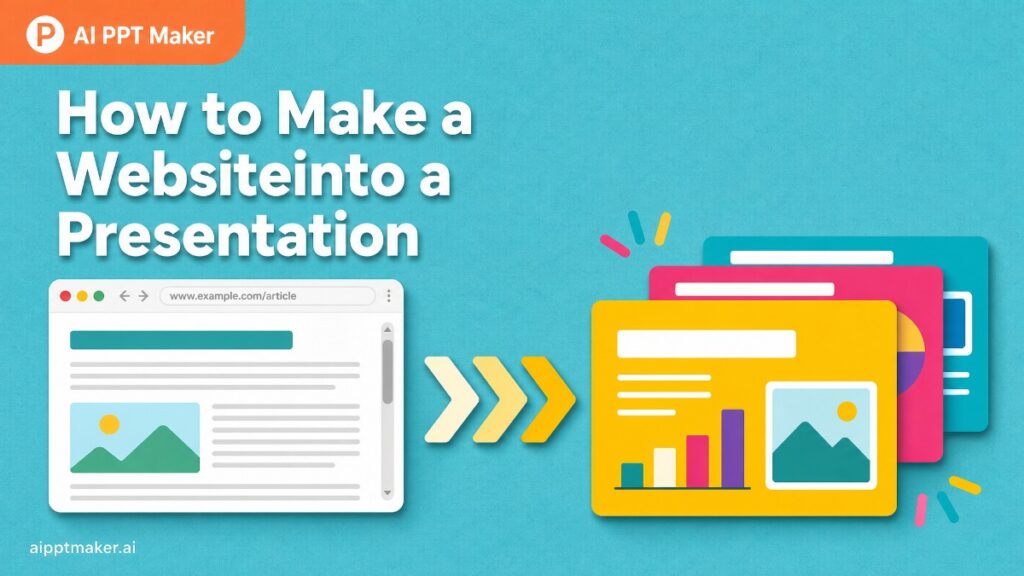
A useful article is open in your browser. It contains the research, examples, and explanations you need for tomorrow’s meeting, yet none of it is ready for a presentation.
Copying the page into PowerPoint creates a new set of problems. Paragraphs are too long, headings do not form a coherent story, and images rarely fit the slide layout. Navigation menus, advertisements, author boxes, and unrelated links come along for the ride. After an hour of copying, shortening, and formatting, the deck still looks like a webpage squeezed into slides.
This is why people search for how to make a website into a presentation. They are not usually trying to preserve the webpage pixel for pixel. They want to extract its useful content, organize the ideas, and convert the material into something an audience can understand without reading the original page.
Modern website-to-presentation tools can accelerate that workflow. You paste a public URL, allow the software to identify the main content, and receive a structured set of slides that can be edited and exported. The technology is convenient, but getting a strong result still requires a few important decisions from you.

What Does It Mean to Turn a Website into a Presentation?
Content Conversion Is Different from Capturing a Webpage
A website and a presentation serve different purposes.
Webpages are designed for scrolling. They can contain long explanations, multiple links, navigation menus, calls to action, related articles, and supplementary information. Visitors choose what to read and how far to continue.
Presentations are sequential. The speaker controls the order, and the audience has limited time to understand each slide. Every page needs a clear role in the larger story.
Learning how to make a website into a presentation therefore means more than taking screenshots. A useful conversion should identify the main article, separate it from the surrounding interface, summarize the material, and redistribute the ideas across an appropriate number of slides.
A 3,000-word article should not become 20 screenshots. Nor should it become three slides filled with tiny text. The goal is to preserve meaning while changing the format.
Three Tasks That Are Often Confused
People use “website to presentation” to describe several different jobs.
One person may want to turn a blog post into training slides. Another might need to summarize a competitor’s product page for a strategy meeting. A designer could be preparing a visual review of an entire website, including screenshots and interface details.
The first two involve converting webpage content into a presentation. The third is closer to documenting or critiquing a website’s design. A URL-to-PPT generator is well suited to content conversion, but it will not necessarily reproduce interactive menus, animations, page behavior, or exact visual styling.
Before beginning, decide whether you need the website’s information, its appearance, or both. That decision determines the rest of the workflow.
Why Copying a Website into PowerPoint Usually Fails
Web Copy Is Too Dense for Slides
An article has room to qualify an argument, introduce background, and explain several examples. A slide does not.
When paragraphs are copied directly into PowerPoint, the audience must choose between listening and reading. Font sizes shrink, important ideas disappear inside blocks of text, and the speaker ends up repeating what is already displayed.
Removing words at random is not a reliable solution. Excessive summarization can strip away the evidence that made the original page valuable. The challenge is to distinguish between the central argument, supporting proof, useful examples, and details that belong in speaker notes.
That is the central content problem behind how to make a website into a presentation: deciding what deserves screen space and what should remain in the background.
The Page Contains More Than the Article
A browser displays far more than the information you intend to present. Headers, footers, sidebars, cookie notices, promotional panels, and recommended posts may all appear in copied material.
Automated webpage-to-PowerPoint tools typically attempt to identify the main readable content and ignore this surrounding material. Results vary by page. A clean article with conventional headings is easier to process than a dynamic product page containing tabs, embedded dashboards, or text loaded after interaction.
Pages behind a login or paywall create another limitation. A website-to-presentation converter can generally read public content, but it cannot safely access private pages without appropriate authentication. If the material is private, exporting it as a permitted document or pasting approved text may be the better workflow.
Screenshots Solve the Wrong Problem
Screenshots are useful when the appearance of the site matters. They can demonstrate a checkout process, compare homepage designs, or document a usability problem. They are less effective when the audience needs to understand the underlying argument.
A screenshot of an article still forces viewers to read a webpage from a slide. Text may be illegible, mobile responsiveness is lost, and nothing remains editable.
Use screenshots selectively. One image can establish context, while the remaining slides explain the content in a format designed for presenting.

How to Make a Website into a Presentation
Start with the Outcome, Not the URL
Before pasting the link into a website-to-presentation tool, define what the deck needs to accomplish.
Suppose you found a detailed market report online. A classroom presentation might explain the report’s key findings and methodology. An executive briefing would emphasize business implications and decisions. A sales team may care only about evidence supporting a customer problem.
The source URL is identical, but the presentations should not be.
Write a short instruction describing the audience, purpose, desired length, and expected outcome. For example:
Turn this article into an eight-slide briefing for a marketing leadership team. Focus on changes in customer behavior, the supporting evidence, and three actions we should consider next quarter.
That instruction gives the conversion process a point of view. Without it, the resulting slides may summarize the webpage accurately while still failing to support your actual presentation.

Choose the Right Page
An entire domain is rarely the best input. A homepage may contain brief marketing statements but little substantive information. Category pages mix multiple articles. Search result pages and dashboards can include fragments that do not form a single narrative.
For better results, select the most relevant individual page: a blog post, public report, case study, documentation page, news article, or detailed product page.
If your presentation requires information from several URLs, process them separately before combining the results. This allows you to evaluate each source and remove repeated points rather than asking the system to merge several unrelated page structures at once.
Knowing how to make a website into a presentation begins with controlling the source. Better input reduces editing later.
Paste the URL and Set the Presentation Context
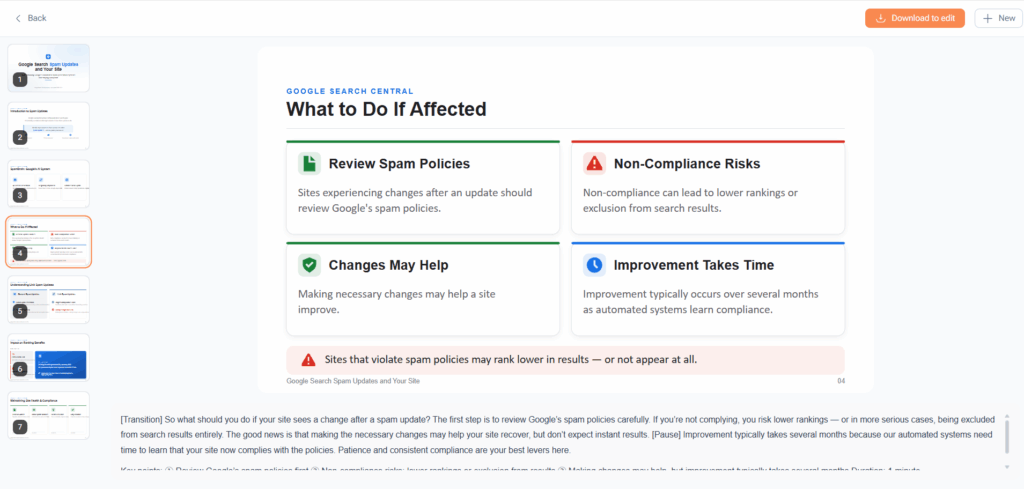
In AI PPT Maker, choose the article-link input and paste the public webpage URL. The tool reads the available page content, identifies key sections, and prepares it for presentation generation.
Settings such as language, slide count, style, and content density influence the output. A five-slide summary will necessarily omit more detail than a 15-slide training deck. Selecting “keep text” may be appropriate when exact wording matters, while stronger summarization works better for a quick overview.
Do not automatically request the highest slide count. A longer deck is not always more complete; it may simply distribute weak material across more pages. Match the length to the presentation time and the complexity of the source.
Review the Outline Before Designing Slides
An outline reveals whether the tool understood the webpage.
Look for the source’s central idea first. Then inspect the sequence. Does the presentation move from context to evidence and conclusion, or does it merely follow the order of headings on the original page?
Webpage structure and presentation structure are not always the same. An article may begin with search-friendly background information before reaching its most useful point. In a presentation, the key conclusion may need to appear much earlier.
Rearrange the outline before investing in design. Merge similar sections, remove content that does not serve the audience, and add any context the webpage assumes readers already possess.
This review is the difference between a converted article and a purposeful slide deck.
Turning Website Content into Strong Slides
Rewrite Headings as Takeaways
Website headings help readers navigate. Presentation headlines should tell the audience what matters.
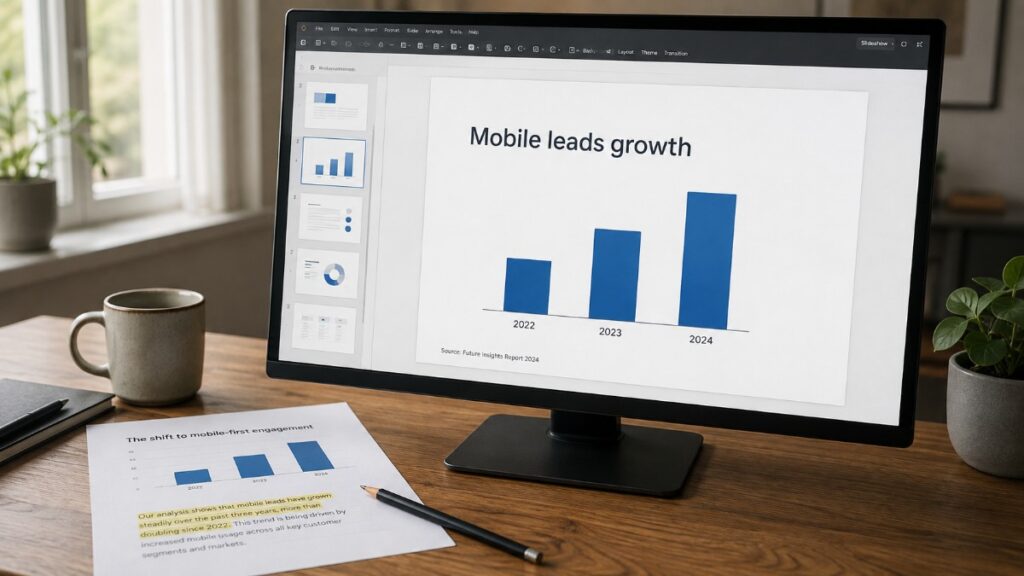
A heading such as “Market Trends” identifies a topic. It does not explain what changed. A stronger slide title might read, “Mobile Purchases Now Drive Most New-Customer Growth.”
Review each generated title and ask whether it communicates a conclusion. If the audience saw only the headlines, would they understand the story?
This adjustment is especially important when learning how to make a website into a presentation, because automated tools often preserve the source page’s heading hierarchy. That hierarchy may be logical for search and reading but too passive for live communication.
Keep Evidence Close to the Claim
Summarization can accidentally separate an argument from the evidence supporting it. A generated slide may contain a strong claim but omit the number, quotation, or example that made it credible.
Return to the original webpage and verify important statements. Add the relevant statistic, date, chart, or case example where necessary. If the source includes a complex table, do not paste the entire object. Highlight the row or trend that supports the slide’s conclusion.
Attribution also matters. Include the article title, publisher, author, or source URL in a discreet footer or final references slide. Converting publicly available content does not remove the need to credit it.
Use Images for Explanation, Not Decoration
Website images are not always suitable for slides. Hero banners may contain promotional text, stock photographs might add little meaning, and diagrams can become unreadable when resized.
Keep visuals that explain the content. Charts, process diagrams, product screenshots, maps, and before-and-after images can all carry information efficiently. Decorative images should earn their place by setting tone or helping the audience remember an idea.
When original visuals cannot be reused, replace them with simple diagrams or icons rather than random stock photography. A clean slide with one meaningful chart is often stronger than an image-heavy layout with no informational value.
Which Website-to-Presentation Method Should You Use?
Manual PowerPoint Works When Precision Matters Most
Manual conversion gives you complete control. You can quote exact passages, rebuild charts, and decide where every detail belongs. It is the safest approach when the webpage is highly technical, the wording has legal significance, or the final presentation must follow strict brand standards.
The cost is time. Every section must be summarized, rewritten, and formatted by hand. For a short webpage, that may be reasonable. For a 5,000-word report due the next morning, it is rarely the most efficient starting point.
A practical compromise is to generate the initial structure automatically and complete precision-heavy slides manually.
General-Purpose AI Is Strong at Summarizing but Weak at Delivery
Chat-based AI tools can read pasted text or, in some configurations, analyze a public link. They are effective for extracting themes, proposing an outline, and rewriting material for different audiences.
However, they may stop at text. You receive slide titles and bullet points, then still need to build the presentation in PowerPoint or Google Slides. This is useful if you already have a strong corporate template and prefer manual design, but it does not eliminate the full production workflow.
Dedicated AI presentation makers combine interpretation with layout generation. Their advantage is not necessarily better writing; it is the ability to move from URL to designed slides in one environment.
Dedicated URL-to-PPT Tools Reduce Handoffs
Platforms such as SlideSpeak, MagicSlides, Presentations.AI, Gamma, and AI PPT Maker support variations of webpage or URL-based presentation creation.
Their workflows differ. Some focus on fast PPTX conversion, while others produce web-native decks or emphasize branded templates. Certain tools send users directly into an online editor; others prioritize downloadable PowerPoint files.
The right choice depends on the final destination. If colleagues will edit the deck in Microsoft PowerPoint, test the PPTX export early. If the presentation will be shared as a link, a web-native format may offer smoother viewing. When design consistency matters, inspect template controls rather than judging only the first generated screen.
No converter removes the need for review. The strongest tool is the one that creates a useful structure while leaving you enough control to correct and refine it.
Common Problems When Converting a Website to Slides
The Tool Cannot Read the Page
A URL-to-PPT tool may fail when a page requires a login, blocks automated access, relies heavily on scripts, or loads content only after the user interacts with it.
First, check whether the page is publicly accessible in a private browser window. If it is not, the converter probably cannot read it either.
For content you are authorized to use, alternatives include exporting the page as a PDF, copying the article text, or saving the material in a supported document format. Never attempt to bypass access restrictions simply to generate a presentation.
The Slides Are Accurate but Boring
Accuracy alone does not create a compelling deck. A tool may reproduce every main section while giving each slide the same title-and-bullets layout.
Vary the visual treatment based on the information. A sequence can become a timeline. Two competing arguments belong in a comparison. A set of numbers may work better as a chart. One powerful statement can stand alone.
Do not introduce variety merely for decoration. Let the content determine the format.
Too Much Important Context Disappears
Website-to-presentation systems must compress information, and compression always involves choices. When the output feels thin, compare it with the source section by section.
Rather than restoring whole paragraphs, add concise evidence or move supporting material into speaker notes. If the topic is complex, increase the slide count moderately or create an appendix.
The aim is not to preserve every sentence. It is to ensure that the audience receives enough context to interpret the conclusions correctly.
The Exported PowerPoint Needs Repair
A deck may look polished in an online editor but shift after export. Fonts can change, text may wrap differently, and advanced graphics sometimes become non-editable images.
Open the PPTX before the deadline. Test several text edits, inspect charts, and view the presentation on the device that will be used. Keep a PDF backup when consistent display matters more than last-minute editing.
Export quality is part of the workflow, not an afterthought.
Practical Uses for Website-to-Presentation Conversion
From Industry Article to Team Briefing
A manager can convert a new industry analysis into a short presentation for a weekly meeting. The deck should not reproduce the article; it should explain what changed, why it matters to the company, and which actions deserve discussion.
From Blog Post to Training Material
Educators and trainers often find detailed online explanations that are useful but too long for a lesson. Turning website content into slides creates a starting structure for definitions, examples, exercises, and discussion questions.
The instructor still needs to verify the material and adapt it to the learners’ level. Generation saves preparation time without replacing teaching judgment.
From Competitor Page to Internal Analysis
Product and marketing teams can use a public competitor page as source material for a feature or positioning review. In this case, screenshots may be as important as extracted text.
A useful deck separates what the competitor explicitly claims from your team’s interpretation. Avoid presenting inferred conclusions as facts, and add dates because product pages change over time.

From Online Report to Client Presentation
Consultants frequently need to transform published research into concise client-facing insights. A URL-to-PPT workflow can build the initial deck, but the value comes from adding analysis specific to the client.
The source provides evidence. Your presentation provides relevance.
A Reliable Website-to-Presentation Workflow
The best answer to how to make a website into a presentation is not “paste a link and download.” That describes the software interaction, not the complete job.
A reliable workflow begins by defining the audience and outcome. It continues with selecting the right page, generating an outline, correcting the narrative, verifying key information, and refining the visual hierarchy. Export and rehearsal complete the process.
Automation handles extraction, summarization, and initial layout. Human judgment decides what the audience needs to understand.
A good website-to-presentation conversion should feel as though the material was created for slides from the beginning. Viewers should not have to imagine the missing browser window or read tiny fragments of an article.
Remove interface clutter. Condense explanations without flattening them. Turn passive headings into conclusions, keep evidence close to claims, and use visuals where they improve understanding.
Once that happens, the URL is no longer merely copied into PowerPoint. Its ideas have been rebuilt for a new medium, a new audience, and a clear purpose.