

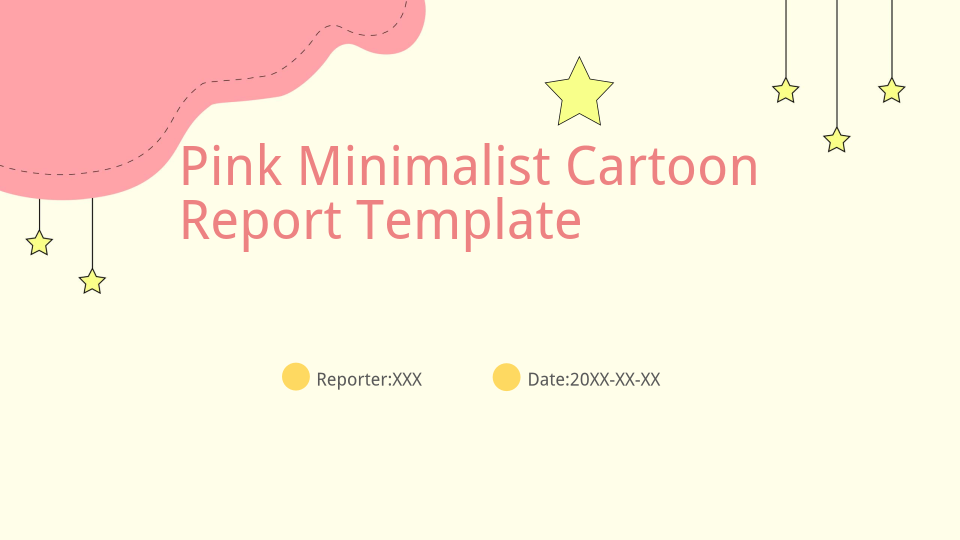
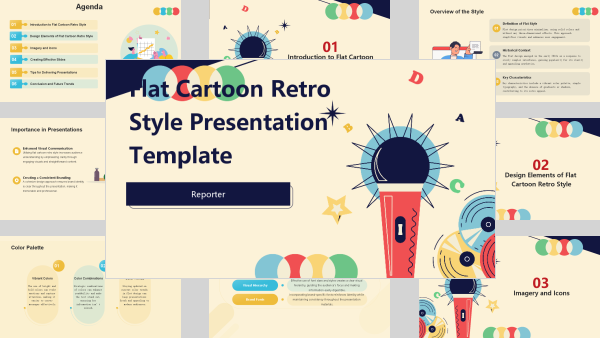
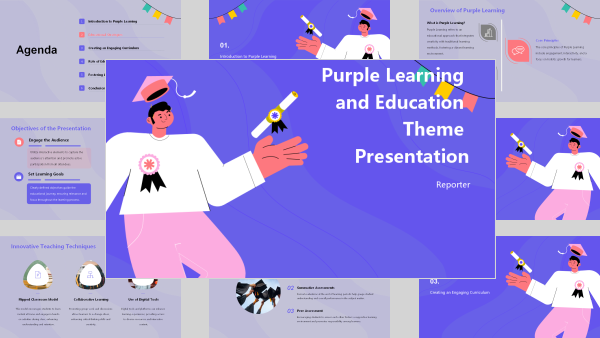
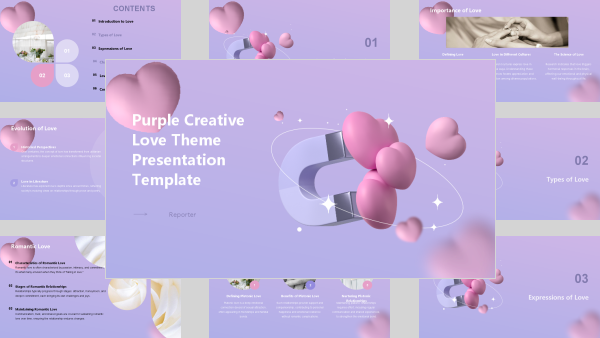
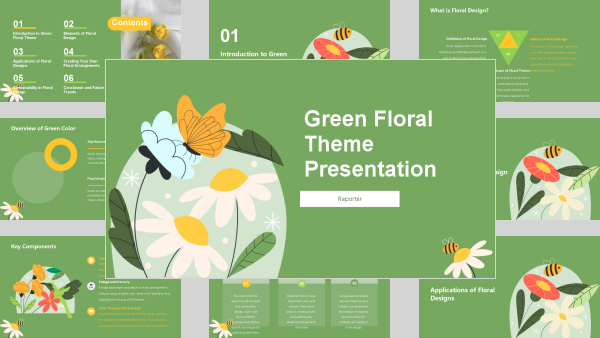
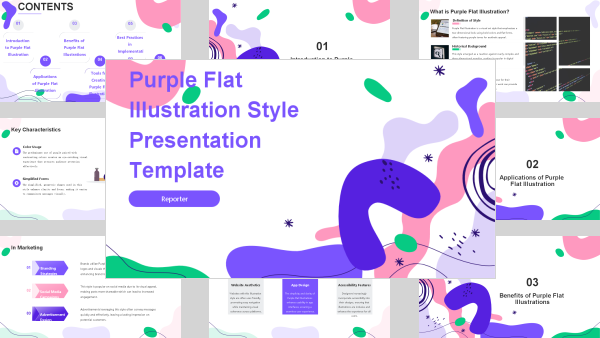
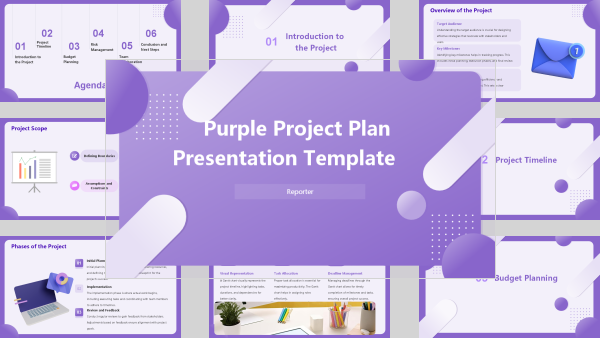
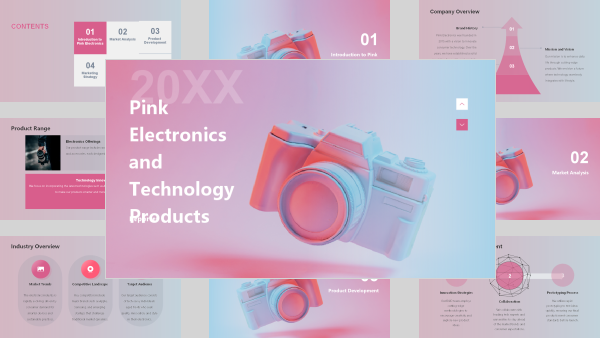
Start with something you actually want to present. Creative Slides lets you preview a style before using it, so you can choose a visual direction without guessing from a name. Find the look that fits your story, then bring in your content and start creating with our AI Presentation Maker.
Create Image-Rich Slides in Your Style
Choose a style or upload a reference image. Let AI shape your ideas into image-rich slides.
Describe your topic, audience, page count & text length, or click “+” to upload files or add links.
Creative Slides: Free Templates for Google Slides & PowerPoint
Explore Creative Slides templates and themes for Google Slides and PowerPoint. Preview a style, then use AI to turn your ideas into visually rich presentations.
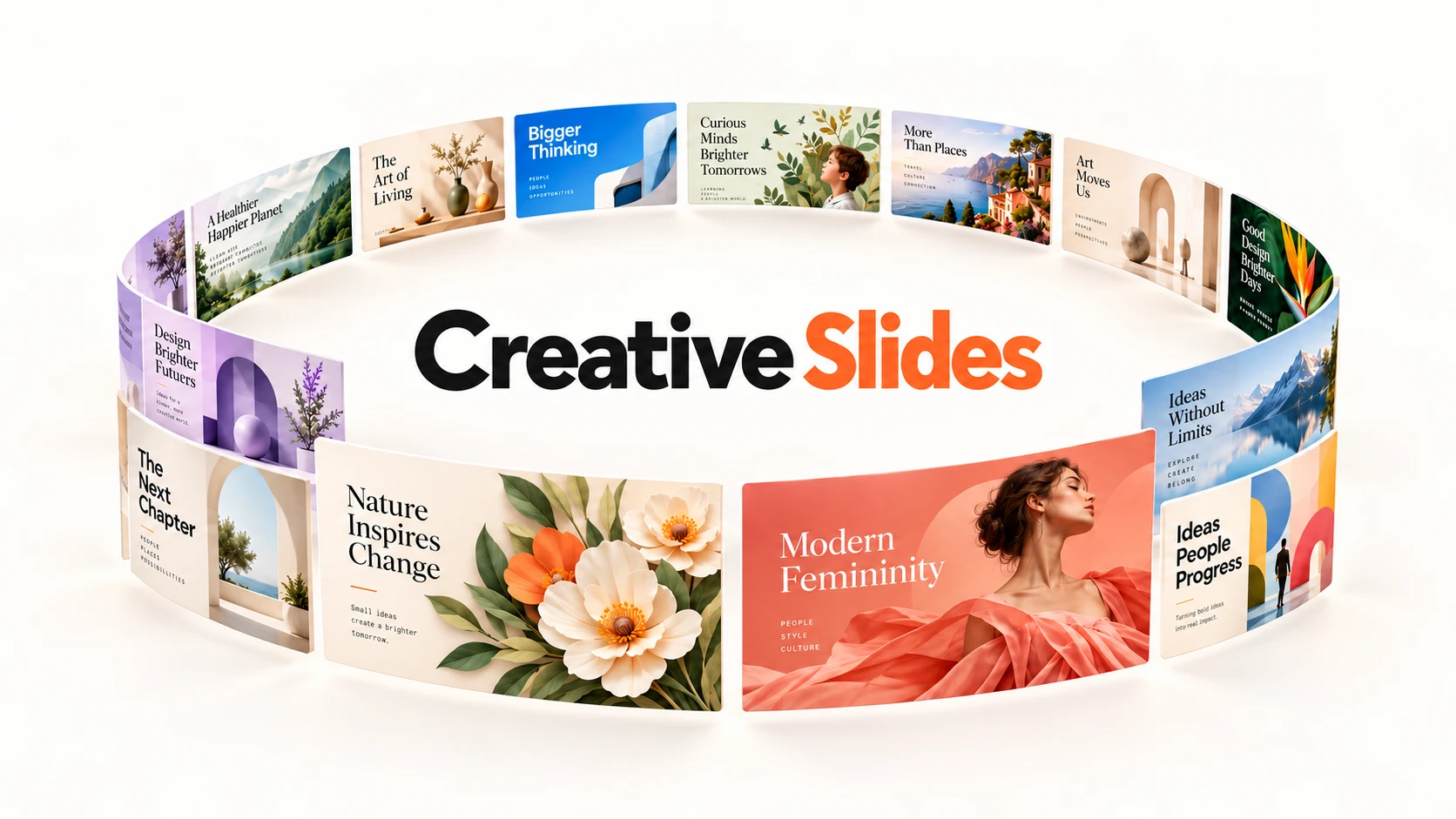
Behind Every Number, an Idea Brought to Life














Cumulative usersAcross the world2,400,000+
Presentations generatedCreated by our users10,000,000+
User satisfaction scoreFrom 6000+ verified reviews4.9/5
Time saved on designAverage 6.5 h per deck90%
Why Does Every Template Make Your Ideas Look Like Someone Else’s?
You scroll past the same safe colors and familiar layouts, searching for something that feels like you. One finally catches your eye—then your content goes in, and the whole look falls apart. Now you’re moving boxes and hunting for images instead of telling your story.
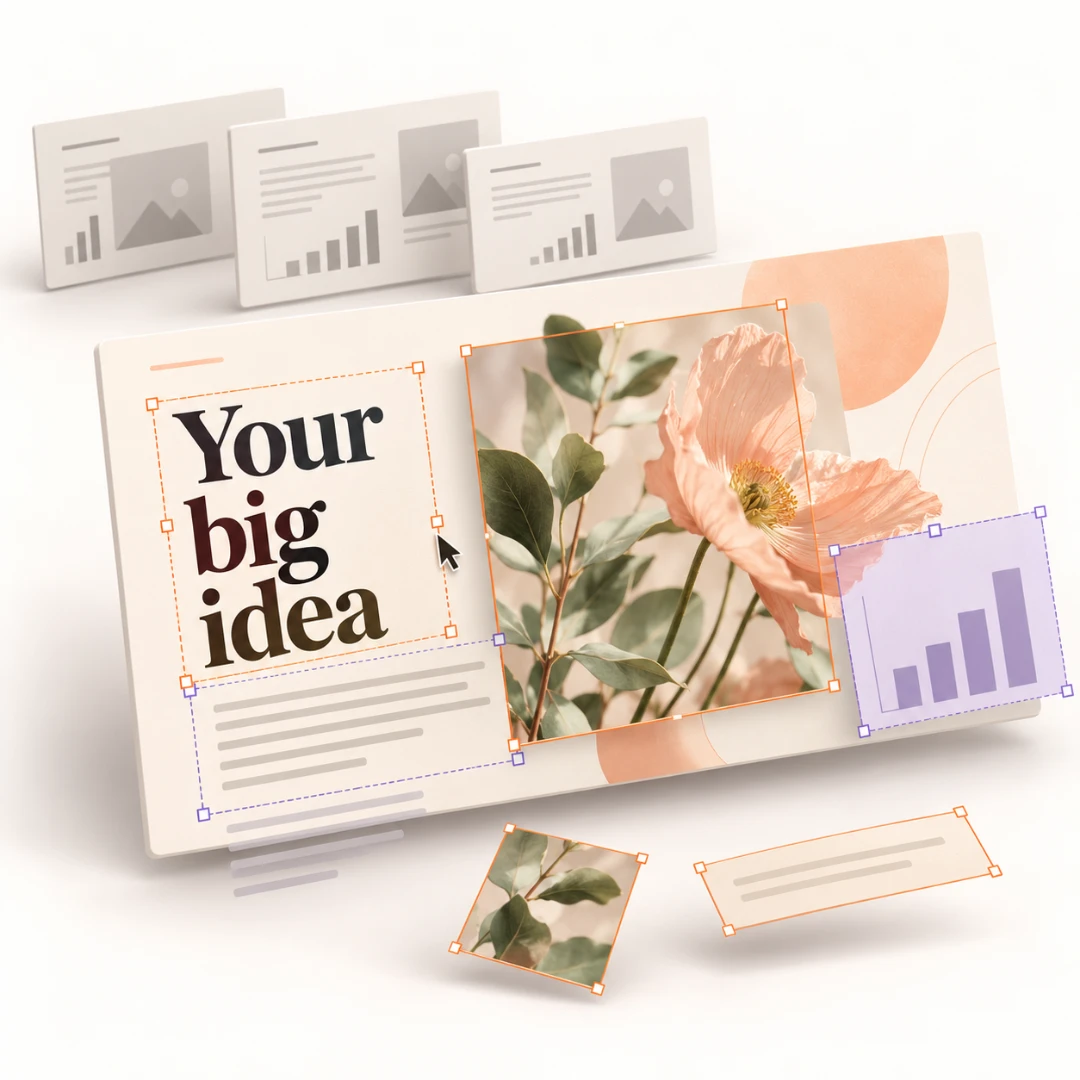
From Your First Idea to Your Finished Deck with Creative Slides
That image you saved says more than “make it modern” ever could. Upload it as a visual reference for Creative Slides and give your presentation a starting point that feels like you. There’s no need to squeeze your taste into a template category or find the perfect design words to explain what you like.
Your ideas deserve more than a wall of bullet points. Creative Slides uses AI to organize your content and build image-rich pages around it, giving you a draft to review and refine. Starting with a recording? Explore Video to PPT to turn that source material into a presentation.
Where Your Ideas Find Their Visual Voice
Creative Slides brings together built-in PPT skills, ready-to-use styles, and your own visual references.
Give Your Ideas Structure with Built-In PPT Skills
Creative Slides combines an AI agent with built-in PPT skills to help organize your content into a coherent deck.
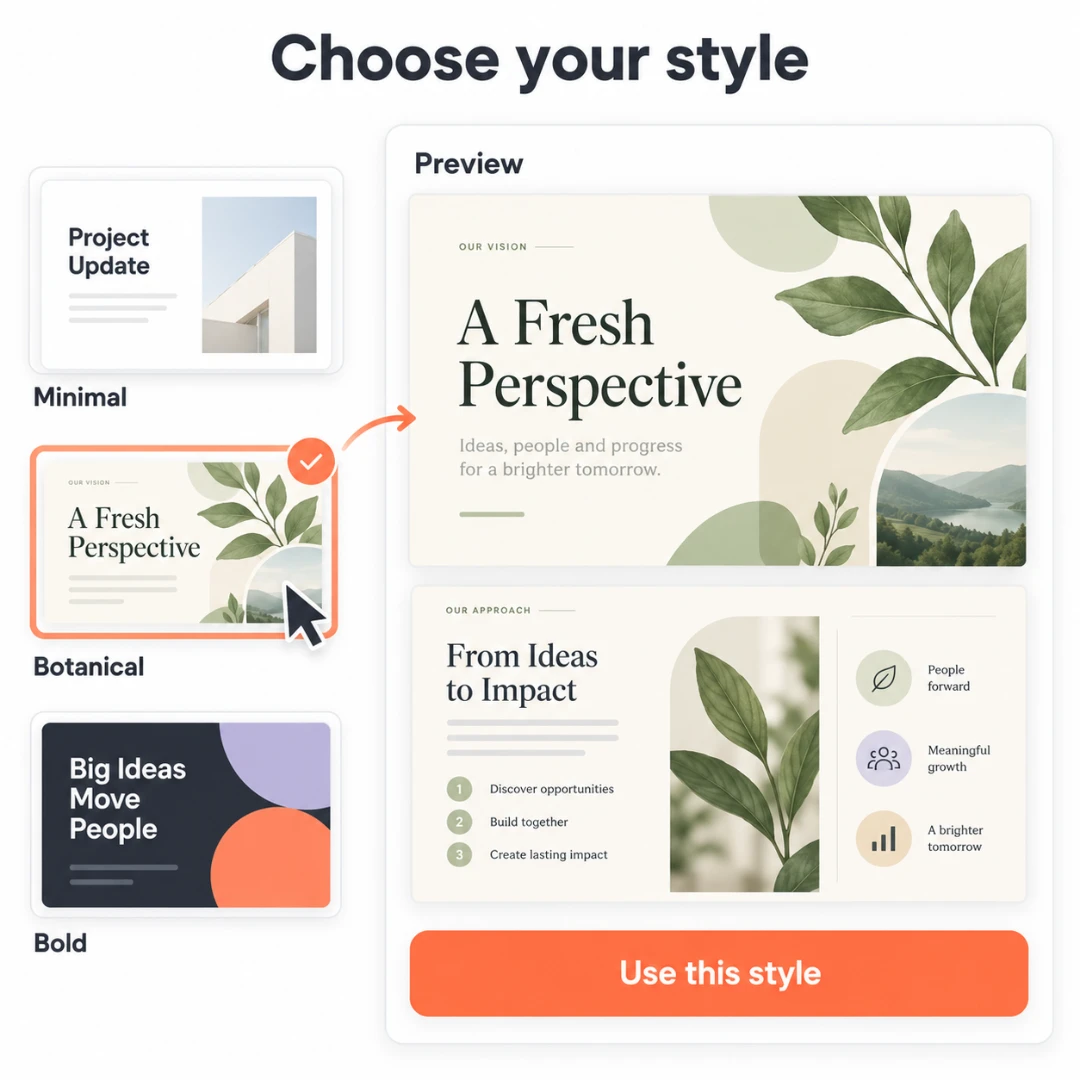
Find a Style That Fits What You Want to Say
Browse Creative Slides styles for business, sales, design, or teaching to find a starting point for your topic.
Take a Closer Look Before You Make Your Choice
Open a Creative Slides template, explore its preview images, and click Apply to use it for your next deck.
Let a Reference Image Do the Explaining for You
Upload an image to Creative Slides and let its visual style guide generation—no design vocabulary needed.
Choose the Image Model Behind Your Next Creation
Select an available image model in Creative Slides before generating the AI visuals for your presentation.
Set Your Canvas Before the First Slide Takes Shape
Choose your aspect ratio in Creative Slides before generation, whether you need a wide or vertical canvas.
How to Create a Deck That Feels Like You
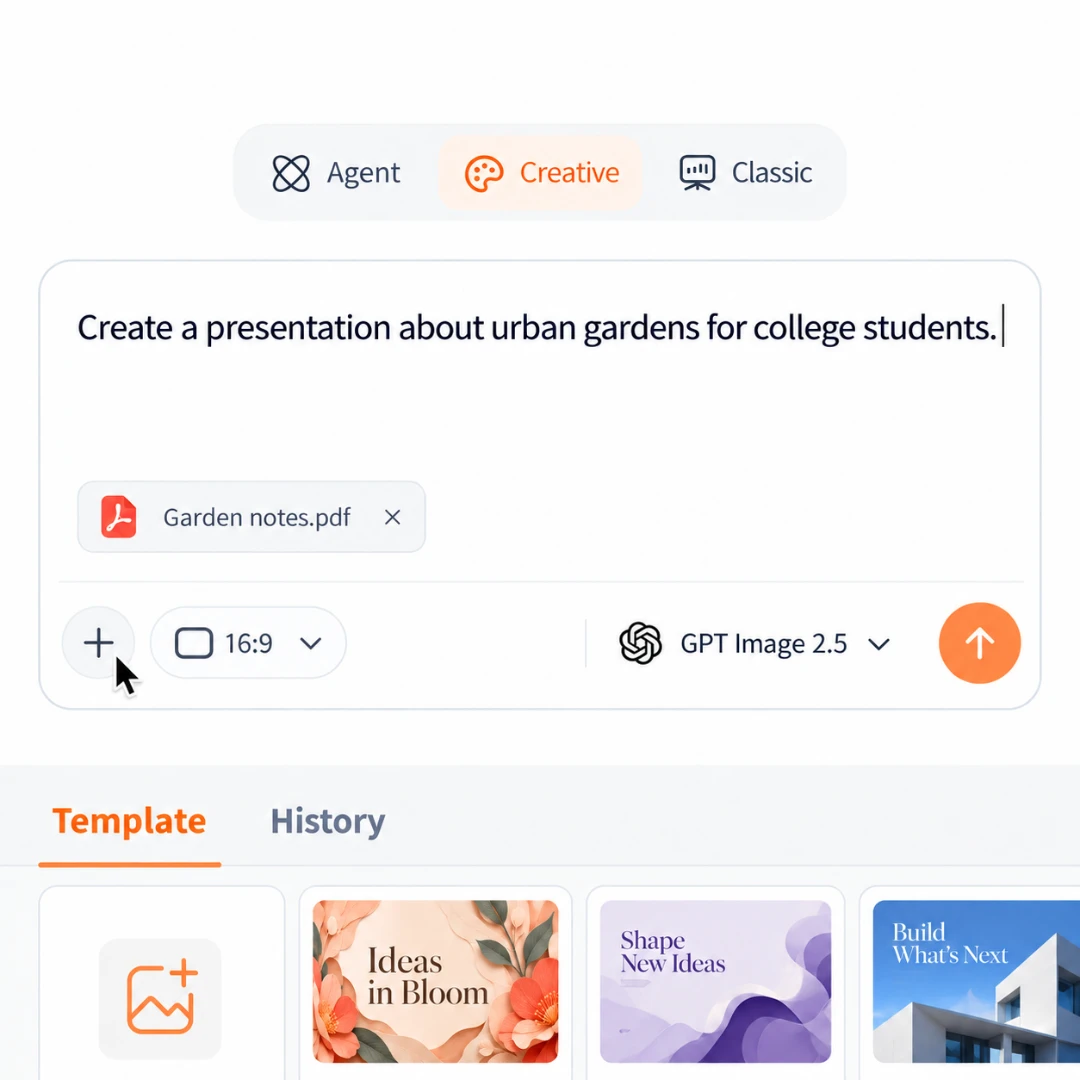
Step 1: Tell Us What You Need
Describe your topic and audience, or add your files to Creative Slides.

Step 2: Find Your Visual Style
Preview presentation templates or upload an image to guide the style.

Step 3: Let Your Slides Take Shape
Choose a ratio and image model, then let Creative Slides build your deck.
Different Stories, Each with a Style of Its Own

★★★★★
“My first university presentation was on urban heat islands, and I was more nervous about the slides than the speaking. I used Creative Slides in AI PPT Maker to try a few visual styles before choosing one. Seeing the sample pages helped me decide what suited the topic. I still checked every fact against my sources, then spent the evening practicing instead of changing background colors.”

★★★★★
“Twenty minutes into choosing a template, I realized I was avoiding the actual lesson planning. That’s usually how it goes. This time I tried Creative Slides in AI PPT Maker for a water-cycle lesson. I picked an illustrated style and described the age group. Having a visual draft gave me something concrete to work with, and I could focus on the questions I wanted my students to answer.”

★★★★★
“The brief said “warm and playful.” My first attempt looked like a quarterly earnings report. I brought a reference image into Creative Slides in AI PPT Maker to give the design a clearer direction. For our bakery’s seasonal campaign pitch, that was much easier than writing another paragraph about the mood. The draft gave our team something useful to discuss before we settled on the final look.”

★★★★★
“I’m comfortable explaining my research. Choosing fonts is where I lose an afternoon. For a lab meeting about plant responses to drought, I used Creative Slides in AI PPT Maker to work from a style I could preview first. I kept the discussion grounded in my own results and reviewed the generated wording carefully. It helped me get a draft together without turning slide design into a second research project.”

★★★★★
“We had the café concept, the menu ideas, and about forty photos saved for inspiration. No presentation. Creative Slides in AI PPT Maker gave us a way to pull the discussion into an actual deck for a potential partner. We chose a visual direction before generating, which helped. My cofounder could finally point to a page and say what needed changing instead of sending me another mood board.”

★★★★★
“I almost reused last semester’s club presentation and changed the dates. Then I remembered how little it said about what we actually do. With Creative Slides in AI PPT Maker, I tried a different style for our photography society’s welcome session. The preview helped me choose the look before generating. I still added our event details myself, and the draft made it easier to see where our own photos should go.”
Frequently Asked Questions
Still have questions?
Find out more about Creative Slides and get help from the AI PPT Maker team.
Contact usWhat is Creative Slides?
Creative Slides is a mode in AI PPT Maker for creating image-rich presentations. Describe what you want to present, choose a visual style, and let AI help organize your content and generate the slides. It’s a way to turn your ideas into a visual draft you can review.
How do I choose a template for my presentation?
Think about your topic and who will be watching. Browse the available Creative Slides templates, open a preview to explore the sample pages, and click Apply when you find a look that fits. A playful classroom lesson and a client proposal don’t need to wear the same outfit.
Can I use my own image as a style reference?
Yes. Upload a reference image to give Creative Slides a visual direction. This is useful when you can picture the look you want more easily than you can describe it. The image guides the style of the generated slides; it isn’t a promise of an exact copy.
What should I include in my prompt?
Tell Creative Slides your topic, audience, and the points you want to cover. You can also specify a page count and how much text you prefer. For example: “Create an eight-slide introduction to the water cycle for primary school students, with short explanations and illustrated examples.”
What do the built-in PPT skills do?
They give the AI agent guidance for organizing and creating presentations. Creative Slides uses these skills behind the scenes to help shape your material into a structured deck. You don’t need to write or install a skill yourself—focus on what you want your audience to understand.
Can I change the slide size or image model?
Yes. Before generating, choose an available aspect ratio and image model in Creative Slides. The ratio sets the shape of your pages, while the image model generates the visuals. Choose the format that suits where you’ll present or display your work.
Are the templates compatible with Google Slides and PowerPoint?
Yes. The templates provided on this page are compatible with Google Slides and PowerPoint. You can use a template in your preferred presentation app or explore the Creative Slides AI workflow. Template compatibility and AI-generated output are separate, so check the available export options when you finish generating.
How are credits calculated in Creative Slides?
Creative Slides combines credits for the AI agent’s token usage with credits for the images generated. The total varies depending on your task. Visit our Pricing page for plan details and credit allowances.